Restore files from the vault
Using the Restore page in the Data Protection console, you can restore a volume, folders, or files. You can choose from the most recent version or a previous version. This may be helpful if you accidentally deleted a file, need an older version of a file, or if you need all of your files because your computer crashed or you received a new computer.
Your administrator can also restore files for you.
-
Go to the Restore page.
If you were prompted when you clicked Restore if you want to restore from a previous installation and you selected Yes, the files backed up with the most recent previous version (not an older previous version or the current installed version ) will automatically be selected. See the description about Restore point below.
-
In the table, drill-down and select the volume, folder, or file that you want to restore. Use the breadcrumb links above the table to go back up the folder tree.
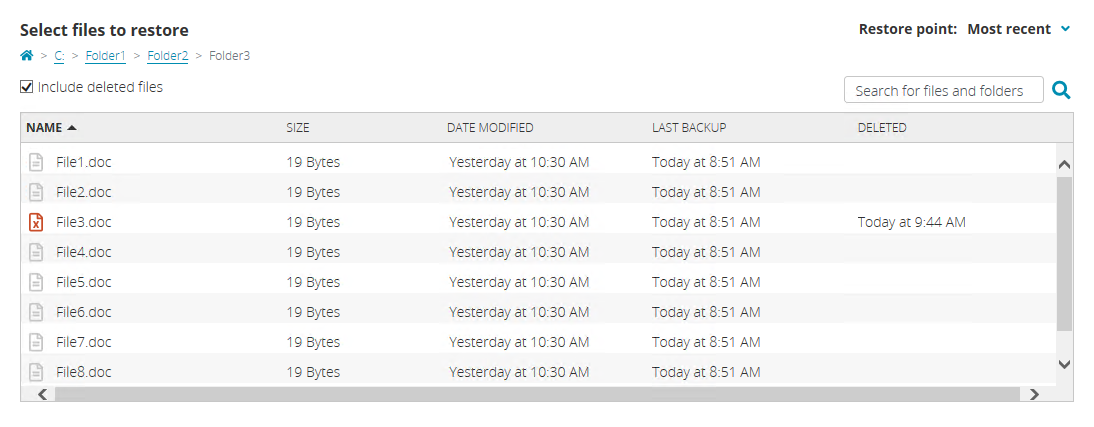
Keep in mind the following when using the table.
- You can select multiple items by using the Shift and Ctrl keys.
- Use the search box to locate specific items in multiple locations.
-
Enable Include deleted files to view items that have been deleted from your device but are still on the vault. When enabled, this option also shows files that are still on the vault that were once included in your backup rules but are now removed from the backup rules.
Files that were being protected and were renamed or moved are treated as deleted files. You will see the original file name or file location when you show deleted files.
- To show only the volumes, folders, and files protected at a specific date and time, click Restore point above the search box. This option lets you restore a previous version of a file.
- Most recent—This option will restore the most recent version that was backed up.
- Include files backed up at this time—Select a date and time from the calendar and clock to restore the version of the file from that date and time. The file must have existed at the backup date and time and must still exist on the vault. Keep in mind, the date and time is when the file was backed up, which may not be the same as the date and time when the file was saved.
- Select Today—Click this option to use the current date and time. This is equivalent to the Most recent option that was the default.
- Or, select a previous install—Select the installation date and time associated with the files you want to restore.
- Restore from current backup—This option uses the files backed up by the current installation. Files that were backed up before this version was installed will not be listed in the table.
- Date and time—If you had previous versions of Data Protection installed and then uninstalled it, the previous versions will be listed by the uninstall date and time. If you select a previous installation, files that were backed up while this version was running will be available for restore, if they still exist on the vault.
- Click Next to continue.
-
Review the Restore summary and select your restore settings.
- Restore location—Select where you want to restore the files.
- New location—Select this option and specify an existing volume or folder where you want to restore the files.
- Original location—Select this option to restore the files back to their original location, which is the location they existed when they were backed up.
- Name conflict—Specify how you want file name conflicts to be resolved.
- Create a new file with appended file name—If a file with the same name already exists in the specified Restore location, leave the existing file and restore the back up file using a new file name. The new file name will have .restored* inserted between the file name and the extension, where * is an incrementing number if the same restored file name already exists. For example, if you backed up File.doc , the restored file name will be File.restored.doc. If you restored that file again, the second restored file name will be File.restored2.doc. Restoring again would be File.restored3.doc and so on.
- Overwrite existing file—If a file with the same name already exists in the specified Restore location, that file will be overwritten by the restored file.
- Restore location—Select where you want to restore the files.
- If you need to go back and see the files you are restoring, click Back.
- When you are ready to being the restoration, click Restore.