Delete files on the vault
If your administrator has granted you access, you can delete backed up files on the vault. You can tell if you have access if you see a Vault erase button when you go to the Restore page. Keep in mind the following caveats, if you want to delete files on the vault.
- If a file is deleted on the vault, all versions of that file will be deleted.
- After a file is deleted on the vault, it cannot be restored.
- This process only removes files on the vault, not from your device.
- If the files you are deleting are included in an active backup rule, they will be backed up again during the next scan. If you no longer want to include that file in the backup, change your protection configuration. See Configure self-managed protection or Configure hybrid protection for details.
Use the following instructions to delete files on the vault.
- Go to the Restore page.
-
In the table, drill-down and then select the volume, folder, or file that you want to delete. Use the breadcrumb links above the table to go back up the folder tree.
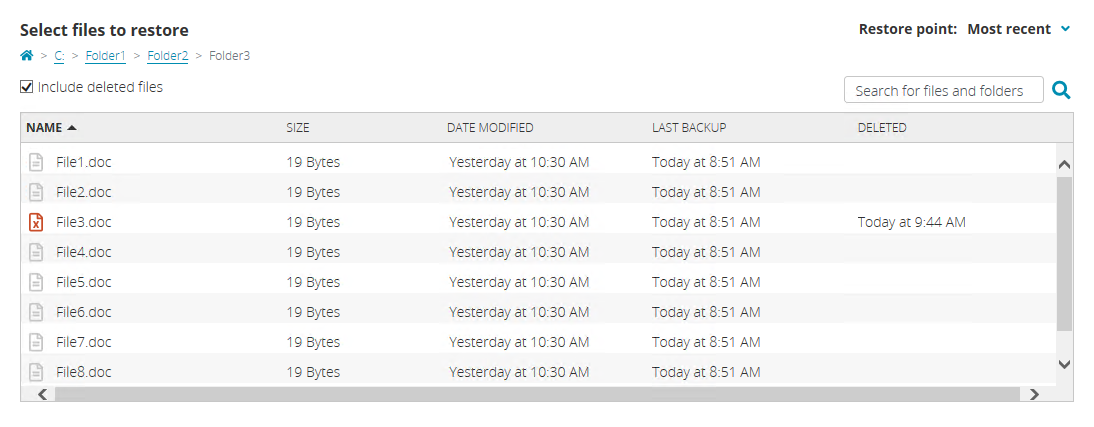
Keep in mind the following when using the table.
- You can select multiple items by using the Shift and Ctrl keys.
- Use the search box to locate specific items in multiple locations.
-
Enable Include deleted files to view items that have been deleted from your device but are still on the vault. When enabled, this option also shows files that are still on the vault that were once included in your backup rules but are now removed from the backup rules.
Files that were being protected and were renamed or moved are treated as deleted files. You will see the original file name or file location when you show deleted files.
- If you are deleting files on the vault, the Restore point option is not used. All versions of the files will be deleted.
- Click Vault erase. If you do not see this button, your administrator has not granted you access to delete files on the vault.
- Confirm you want to delete the files on the vault by clicking Yes.
- When prompted, click OK after the vault erase request has been submitted.
You can confirm the success of the deletion on the Home page under Recent Activity.